
Welcome to my blog I am Imran Ansari a Professional web Designer/Deneloper/SEO from Gurgaon.
I belong to Sant Kabir Nagar distric of Uttar Pradesh. I am son of a middle class family from U.P. India. My father Mr. Mushtaque Ansari a business man who is running a small cotton fabrics manufaturing Company (Zeeshan Textiles). Currently I live in (gurgaon)Haryana doing Job as a Sr. Web Designer. -->
I am a self-reliant, motivated and hardworking individual having over 3 years of I.T Experience. I am willing to use my capabilities to prove to the company that I am an asset to their organization. I am well Educated & Experience in Software Applications Design and well familiar with Web Designing / Development Process.
I am working with E-Tech Services Pvt. Ltd. Gurgaon Haryana as Sr. Website Designer. I have also knowledge of SEO and Website Promotion.
If you have requirement of freelance Web Designer for website development for your business then You can contact me on giving Contact Details:
I am working on these applications:
Dream Weaver, HTML, XHTML, CSS, Flash, PHP, MY SQL, Photo Shop, Front Page, Corel Draw, Page Maker, Java Script, jQuery, VB Script, MS Excel, Internet Marketing(SEO), Power Point, Word.
Contacts
IMRAN AHMAD ANSARI
Email: ansari.imran88@gmail.com, imran101188@yahoo.co.in,
Contact No. +919873273398, +9312523882
Websites: www.treattech.in
imran.khalilabad.in
Jquery Tutorials
How to get the element?
Writing jQuery function is relatively easy (thanks to the wonderful documentation). The key point you have to learn is how to get the exact element that you want to apply the effects.$("#header")= get the element with id="header"$("h3")= get allelement
$("div#content .photo")= get all element with class="photo" nested in the$("ul li")= get all- element nested in all
$("ul li:first")= get only the first- element of the
1. Simple slide panel
Let's start by doing a simple slide panel. You've probably seen a lot of this, where you click on a link and a panel slide up/down. (view demo)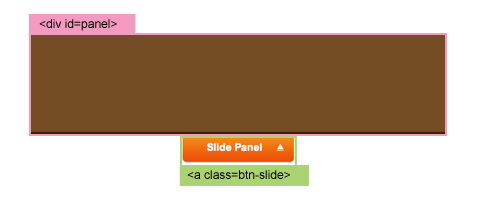
element and then toggle a CSS
class="active" to the element. The .active
class will toggle the background position of the arrow image (by CSS).
$(document).ready(function(){

 $(".btn-slide").click(function(){
   $("#panel").slideToggle("slow");
   $(this).toggleClass("active");
 });

});
2. Simple disappearing effect
This sample will show you how to make something disappear when an image button is clicked. (view demo)
and animate its opacity=hide
with slow speed.
$(document).ready(function(){

 $(".pane .delete").click(function(){
   $(this).parents(".pane").animate({ opacity: "hide" }, "slow");
 });

});
4a. Accordion #1
Here is a sample of accordion. (view demo)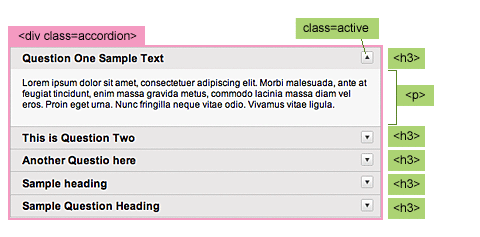
element within the
(the "active" class
will shift the background position of the arrow icon). The second line
will hide all the element that is not the first within the
.
When the
element is clicked, it will slideToggle the next
and slideUp all its siblings, then toggle the class="active".
$(document).ready(function(){

 $(".accordion h3:first").addClass("active");
 $(".accordion p:not(:first)").hide();


 $(".accordion h3").click(function(){

   $(this).next("p").slideToggle("slow")
   .siblings("p:visible").slideUp("slow");
   $(this).toggleClass("active");
   $(this).siblings("h3").removeClass("active");

 });

});
4b. Accordion #2
This example is very similar to accordion#1, but it will let you specify which panel to open as default. (view demo)
In the CSS stylesheet, set .accordion p to display:none. Now suppose you want to open the third panel as default. You can write as $(".accordion2 p").eq(2).show(); (eq = equal). Note that the indexing starts at zero.
$(document).ready(function(){

 $(".accordion2 h3").eq(2).addClass("active");
 $(".accordion2 p").eq(2).show();

 $(".accordion2 h3").click(function(){
   $(this).next("p").slideToggle("slow")
   .siblings("p:visible").slideUp("slow");
   $(this).toggleClass("active");
   $(this).siblings("h3").removeClass("active");
 });

});
Dynamic Page / Replacing Content
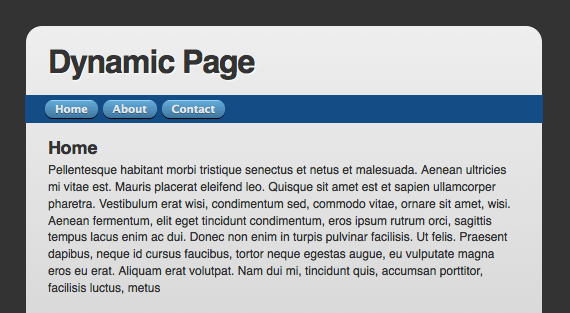
Let's say you wanted to make a website where clicking buttons in the nav would dynamically load some content. Kind of like the organic tabs thing, only the content is loaded dynamically. Say something like this:
View Demo Download Files
The HTML: It all works without JavaScript
There is no excuse for the navigation of a website to be completely
broken without JavaScript enabled. So the best approach here is just to
create these pages and the navigation as plain ol' semantic HTML. You
know, like it's 2001.
The navigation links to the files that contain that content, and are fully formed functional pages on their own.
<nav>
    <ul>
        <li><a href="index.php">Home</a></li>
        <li><a href="about.php">About</a></li>
        <li><a href="contact.php">Contact</a></li>
    </ul>
</nav>
CSS
This isn't really a tutorial about CSS, but if you want to peak at it, go for it. Shout out to Mike Rundle who shared the CSS for those buttons the other day on Twitter as I was working on this and I stole it.
jQuery JavaScript
The JavaScript is the fun part here! This is the plan in plain English:
- When a navigation button is clicked...
- Change the hash tag of the URL
- When the hash tag in the URL changes...
- Fade out the old content
- Load and fade in the new content
- Update the current navigation highlighting
So why bother with the "hash tag" changing stuff? Several reasons:
- By using the hashchange event plugin by Ben Alman, we can enable the browsers back/forward button. Super modern browsers support the hashchange event by themselves, this plugin enables support for it for older browsers.
- We can look for the hash when the page loads and load the appropriate page (i.e. "deep linking")
Prereq
We'll be using the jQuery library, the onhashchange plugin, and then loading our own script last.
<script type='text/javascript' src='http://ajax.googleapis.com/ajax/libs/jquery/1.4/jquery.min.js'></script>
<script type='text/javascript' src='js/jquery.ba-hashchange.min.js'></script>
<script type='text/javascript' src='js/dynamicpage.js'></script>
Code Dump
$(function() {

    var newHash      = "",
        $mainContent = $("#main-content"),
        $pageWrap    = $("#page-wrap"),
        baseHeight   = 0,
        $el;

    $pageWrap.height($pageWrap.height());
    baseHeight = $pageWrap.height() - $mainContent.height();

    $("nav").delegate("a", "click", function() {
        window.location.hash = $(this).attr("href");
        return false;
    });

    $(window).bind('hashchange', function(){

        newHash = window.location.hash.substring(1);

        if (newHash) {
            $mainContent
                .find("#guts")
                .fadeOut(200, function() {
                    $mainContent.hide().load(newHash + " #guts", function() {
                        $mainContent.fadeIn(200, function() {
                            $pageWrap.animate({
                                height: baseHeight + $mainContent.height() + "px"
                            });
                        });
                        $("nav a").removeClass("current");
                        $("nav a[href='"+newHash+"']").addClass("current");
                    });
                });
        };

    });

    $(window).trigger('hashchange');

});
Not much to it really. It's only 41 lines with some blanks in there
for readability. This even includes adjusting the height of the whole
wrapper to adjust for the new content.
Create a unique Gallery with z-index
Introduction
In this tutorial we want to create a unique picture gallery utilizing the CSS property z-index.
In our example we have the appearance of a pile of pictures, on the
next action we put the first picture on the last position and on the
previous action we get the picture from the last position to the first.
All done just by altering the z-index, of course with a animation to
underline the imagination to have a pile of pictures.
Preparing the xHTML, CSS and Pictures
xHTML
<div class="grid_6 prefix_1 suffix_1" id="gallery"> <div id="pictures"> <img src="images/picture1.png" alt="" /> <img src="images/picture2.png" alt="" /> <img src="images/picture3.png" alt="" /> <img src="images/picture4.png" alt="" /> <img src="images/picture5.png" alt="" /> </div>-
<div class="grid_3 alpha" id="prev"> <a href="#previous">« Previous Picture</a> </div> <div class="grid_3 omega" id="next"> <a href="#next">Next Picture »</a> </div></div>
We have the wrapping container gallery, a container pictures for the
pictures and two controls prev and next for swapping the pictures.
We can add as many pictures as we want because our script will pick them up dynamically.
If the class names of the DIV’s don’t look fimilar to you, they are from the 960 Grid System and just there to positioning the blocks. They don’t affect the jQuery code or the functionality of our gallery in any way.
CSS
/* relevant for the tutorial - start */# gallery { position: relative; } # pictures { position: relative; height: 408px; } # pictures img { position: absolute; top: 0; left: 0; }-
#prev, # next { margin-top: 30px; text-align: center; font-size: 2.0em; }/* relevant for the tutorial - end */
The pictures container has relative position (under the heading) and a
height of one picture. The img’s inside of the pictures container have
absolute position. As they are all have a top and left of zero they
overlap each other. The last picture (5) in the markup is on top, and
the first (1) is on last position.
 Pictures Container - Img positioned absolute (Top 0 - Left 0)
Pictures
In the example we use PNG’s, they all are transparent and have the
same height and width. To create the effect of a pile of pictures each
picture has a smooth drop-shadow and is gently rotated in different
directions. I did that manually with Photoshop. If you want to do it
programmatically then server side Image Magick may help or you have a look at https://developer.mozilla.org/en/Canvas_tutorial">Canvas (which is pretty fun by the way!).
The principle of changing z-index
The z-index will represent the position of a picture, 1 is the last
position and 5 (since we have 5 example pictures) is the top position.
In the next picture action we want to put the first picture to the
last postion, means set z-index to 1. All other pictures’ z-index need
to be increased by one. Former second picture (4) will become the top
picture and so on.
In the previous picture action we want to put the last picture, means
z-index 1, to the first position 5. All other pictures’ z-index need to
be decreased by one. Former top picture (5) will be put on position 4
and so on.
The Code
$(document).ready(function() { //perform actions when DOM is ready var z = 0; //for setting the initial z-index's var inAnimation = false; //flag for testing if we are in a animation-
$('#pictures img').each(function() { //set the initial z-index's z++; //at the end we have the highest z-index value stored in the z variable $(this).css('z-index', z); //apply increased z-index to ![]()
});-
function swapFirstLast(isFirst) { if(inAnimation) return false; //if already swapping pictures just return else inAnimation = true; //set the flag that we process a image-
var processZindex, direction, newZindex, inDeCrease; //change for previous or next image-
if(isFirst) { processZindex = z; direction = '-'; newZindex = 1; inDeCrease = 1; } //set variables for "next" action else { processZindex = 1; direction = ''; newZindex = z; inDeCrease = -1; } //set variables for "previous" action-
$('#pictures img').each(function() { //process each image if($(this).css('z-index') == processZindex) { //if its the image we need to process $(this).animate({ 'top' : direction + $(this).height() + 'px' }, 'slow', function() { //animate the img above/under the gallery (assuming all pictures are equal height) $(this).css('z-index', newZindex) //set new z-index .animate({ 'top' : '0' }, 'slow', function() { //animate the image back to its original position inAnimation = false; //reset the flag }); }); } else { //not the image we need to process, only in/de-crease z-index $(this).animate({ 'top' : '0' }, 'slow', function() { //make sure to wait swapping the z-index when image is above/under the gallery $(this).css('z-index', parseInt($(this).css('z-index')) + inDeCrease); //in/de-crease the z-index by one }); } });-
return false; //don't follow the clicked link }-
$('#next a').click(function() { return swapFirstLast(true); //swap first image to last position });-
$('#prev a').click(function() { return swapFirstLast(false); //swap last image to first position });});
Let’s break that small script into pieces of interest.
$('#pictures img').each(function() { //set the initial z-index's z++; //at the end we have the highest z-index value stored in the z variable $(this).css('z-index', z); //apply increased z-index to ![]()
});
We haven’t set the initial z-index in the markup nor the CSS. To have
a starting point we set the z-index’s via jQuery. The order is just as
in the markup. After finishing looping through all img in the pictures
container we also have the number of pictures and highest z-index value
in the variable z.
function swapFirstLast(isFirst) {
We use the same function for the previous and next action as they are doing basically the same thing.
if(inAnimation) return false; //if already swapping pictures just returnelse inAnimation = true; //set the flag that we process a image
We only want to process one picture at a time. The inAnimation flag
determines if we are in a process. If so we just return to the caller
without doing anything, if not we set the flag and go on with the
picture swapping.
var processZindex, direction, newZindex, inDeCrease; //change for previous or next image-
if(isFirst) { processZindex = z; direction = '-'; newZindex = 1; inDeCrease = 1; } //set variables for "next" actionelse { processZindex = 1; direction = ''; newZindex = z; inDeCrease = -1; } //set variables for "previous" action
As we use one function for two processes we need to set some
necessary variables. processZindex is the position we need to process,
either the first position for the next picture or the last position for
the previous picture. The direction is where a picture will animate
while swapping, either above or under (-) the pile of pictures. The
newZindex will be set to the picture we process, 1 for the last position
and the highest z-index for the first position. Last but not least the
variable inDeCrease tells if the rest of the pictures’ z-index will be
increased (+1 position) or decreased (-1 position) by one.
$('#pictures img').each(function() { //process each image
We loop through all images to check the z-index and alter it.
if($(this).css('z-index') == processZindex) { //if its the image we need to process $(this).animate({ 'top' : direction + $(this).height() + 'px' }, 'slow', function() { //animate the img above/under the gallery (assuming all pictures are equal height) $(this).css('z-index', newZindex) //set new z-index .animate({ 'top' : '0' }, 'slow', function() { //animate the image back to its original position inAnimation = false; //reset the flag }); });}
We check if it’s the image we need to process (either first or last
position). If so we go on and animate the picture either above or under
the rest of the pile of pictures. When finished with this we set the new
z-index to the picture and animate it back in position. When finished
and the picture is back in place we release the inAnimation flag.
else { //not the image we need to process, only in/de-crease z-index $(this).animate({ 'top' : '0' }, 'slow', function() { //make sure to wait swapping the z-index when image is above/under the gallery $(this).css('z-index', parseInt($(this).css('z-index')) + inDeCrease); //in/de-crease the z-index by one });}
Here we bind the click event to the prev and next controls. We return
the return value of our function which is always false. Returning false
from that click event means we don’t follow the clicked link.
Conclusion
We created a nice looking gallery with just a few lines of code. Of
course it could be extended with other features (randomness is pretty
kewl: random picture control, slightly random positions each time…) but
you get the idea of how to combine a CSS property and the power of
jQuery. Feel free to change the code to your needs and be so kind to
share it with us in the comments if you like. Every other comment is
welcome as well.
/*************************************************************/
A Beautiful Apple-style Slideshow Gallery With CSS & jQuery
Martin Angelov
jQuery Trickshots is our new epic jQuery tips and tricks book. Check it out!
Introduction
When speaking about design, there is one company that is impossible
to go without. Apple values design – being a new product, a fancy
catalog or their website – there is always something to admire.
This week, we are making an Apple-like slideshow gallery,
similar to the one they use on their website to showcase their
products. It will be entirely front-end based, no PHP or databases
required.
So go ahead and download the example source code and continue with the first step.
Step 1 – XHTML
There is no need for a database nor a PHP back-end for this gallery.
This means that it is really easy to incorporate into an existing site –
you just have to change a few lines of html code.
Lets take a closer look at the XHTML markup:
demo.html
<div id="main">

<div id="gallery">

<div id="slides">

<div class="slide"><img src="img/sample_slides/macbook.jpg" width="920" height="400" /></div>
<div class="slide"><img src="img/sample_slides/iphone.jpg" width="920" height="400" /></div>
<div class="slide"><img src="img/sample_slides/imac.jpg" width="920" height="400" /></div>

</div>

<div id="menu">

<ul>
<li class="fbar"> </li><li class="menuItem"><a href=""><img src="img/sample_slides/thumb_macbook.png" /></a></li><li class="menuItem"><a href=""><img src="img/sample_slides/thumb_iphone.png" /></a></li><li class="menuItem"><a href=""><img src="img/sample_slides/thumb_imac.png" /></a></li>
</ul>

</div>

</div>

</div>
The idea is simple – there are two main container DIVs – the one with id=”menu” holds the thumbnails, and the other – “slides” holds the slides themselves.
To add a new slide, you’ll just have to add new elements to both containers. The slides are JPGs, and the thumbnails are transparent PNGs, but you can use any image type you want.
You can even put any kind of HTML in as well. For example you could
make a certain slide into a hyperlink by just putting the image inside
of an anchor tag.
That said, it is important to have the width and height
attributes set up of the slide images – it is used by jQuery to
determine the width of the sliding area, as you’ll see in a moment.
Also notice that the thumbnail LI elements. The first one is assigned a class name of fbar , used to only show a vertical dividing bar, and the others are assigned a menuItem class – used as the slideshow control buttons.
Now lets continue with the next step.

An Apple-like Slideshow Gallery
Step 2 – CSS
Lets see what lays hidden in our stylesheet. I’ve only included the
styles that are directly used by the gallery. You can view the rest of
the styles, used to show the demo, in demo.css.
demo.css
body,h1,h2,h3,p,quote,small,form,input,ul,li,ol,label{
    /* Page reset */
    margin:0px;
    padding:0px;
}

body{
    /* Setting default text color, background and a font stack */
    color:#444444;
    font-size:13px;
    background: #f2f2f2;
    font-family:Arial, Helvetica, sans-serif;
}

/* Gallery styles */

#gallery{
    /* CSS3 Box Shadow */
    -moz-box-shadow:0 0 3px #AAAAAA;
    -webkit-box-shadow:0 0 3px #AAAAAA;
    box-shadow:0 0 3px #AAAAAA;

    /* CSS3 Rounded Corners */

    -moz-border-radius-bottomleft:4px;
    -webkit-border-bottom-left-radius:4px;
    border-bottom-left-radius:4px;

    -moz-border-radius-bottomright:4px;
    -webkit-border-bottom-right-radius:4px;
    border-bottom-right-radius:4px;

    border:1px solid white;

    background:url(img/panel.jpg) repeat-x bottom center #ffffff;

    /* The width of the gallery */
    width:920px;
    overflow:hidden;
}

#slides{
    /* This is the slide area */
    height:400px;

    /* jQuery changes the width later on to the sum of the widths of all the slides. */
    width:920px;
    overflow:hidden;
}

.slide{
    float:left;
}

#menu{
    /* This is the container for the thumbnails */
    height:45px;
}

ul{
    margin:0px;
    padding:0px;
}

li{
    /* Every thumbnail is a li element */
    width:60px;
    display:inline-block;
    list-style:none;
    height:45px;
    overflow:hidden;
}

li.inact:hover{
    /* The inactive state, highlighted on mouse over */
    background:url(img/pic_bg.png) repeat;
}

li.act,li.act:hover{
    /* The active state of the thumb */
    background:url(img/active_bg.png) no-repeat;
}

li.act a{
    cursor:default;
}

.fbar{
    /* The left-most vertical bar, next to the first thumbnail */
    width:2px;
    background:url(img/divider.png) no-repeat right;
}

li a{
    display:block;
    background:url(img/divider.png) no-repeat right;
    height:35px;
    padding-top:10px;
}

a img{
    border:none;
}
We have used a number of CSS3 specific properties in this slideshow gallery:
- box-shadow, which makes the gallery cast a light
shadow around its edges. To use it, you have to provide offsets by X and
Y (0 0 here), the blurring (3px in this example) and the color of the
shadow;
- border-radius, which rounds the bottom corners of the gallery.
Unfortunately, these properties are only supported in Safari, Chrome
and Firefox for now. However in the rest of the browsers you still have a
completely functional gallery.
Now it is time for some jQuery magic.
Step 3 – jQuery
As I already mentioned, this gallery does not use any server-side
code, so it is all up to the front end to make the slideshow tick.
script.js
$(document).ready(function(){
    /* This code is executed after the DOM has been completely loaded */

    var totWidth=0;
    var positions = new Array();

    $('#slides .slide').each(function(i){
        /* Loop through all the slides and store their accumulative widths in totWidth */
        positions[i]= totWidth;
        totWidth += $(this).width();

        /* The positions array contains each slide's commulutative offset from the left part of the container */

        if(!$(this).width())
        {
            alert("Please, fill in width & height for all your images!");
            return false;
        }
    });

    $('#slides').width(totWidth);

    /* Change the cotnainer div's width to the exact width of all the slides combined */

    $('#menu ul li a').click(function(e){

        /* On a thumbnail click */
        $('li.menuItem').removeClass('act').addClass('inact');
        $(this).parent().addClass('act');

        var pos = $(this).parent().prevAll('.menuItem').length;

        $('#slides').stop().animate({marginLeft:-positions[pos]+'px'},450);
        /* Start the sliding animation */

        e.preventDefault();
        /* Prevent the default action of the link */
    });

    $('#menu ul li.menuItem:first').addClass('act').siblings().addClass('inact');
    /* On page load, mark the first thumbnail as active */
});
The main idea behind this script is to loop through all the slides,
sum up their widths and assign the sum to the slides container – the DIV
with the id=”slides“. Because the slides are floated to the left and have enough room, they align next to each other.
Later, when you click a thumbnail, the script calculates which slide to show and scrolls the #slides div by assigning a negative margin via the animate method.
And with just 40 lines of code, the Apple-like slider gallery is finished!

The Gallery Explained
Conclusion
In three easy steps we created a beautiful Apple-style slideshow
gallery. It can be easily included into any website by just adding a few
lines of code.
.
When the
element is clicked, it will slideToggle the next
and slideUp all its siblings, then toggle the class="active".
$(document).ready(function(){
$(".accordion h3:first").addClass("active");
$(".accordion p:not(:first)").hide();
$(".accordion h3").click(function(){
$(this).next("p").slideToggle("slow")
.siblings("p:visible").slideUp("slow");
$(this).toggleClass("active");
$(this).siblings("h3").removeClass("active");
});
});
$(document).ready(function(){
$(".accordion h3:first").addClass("active");
$(".accordion p:not(:first)").hide();
$(".accordion h3").click(function(){
$(this).next("p").slideToggle("slow")
.siblings("p:visible").slideUp("slow");
$(this).toggleClass("active");
$(this).siblings("h3").removeClass("active");
});
});4b. Accordion #2
This example is very similar to accordion#1, but it will let you specify which panel to open as default. (view demo)In the CSS stylesheet, set
.accordion p to display:none. Now suppose you want to open the third panel as default. You can write as $(".accordion2 p").eq(2).show(); (eq = equal). Note that the indexing starts at zero.$(document).ready(function(){
$(".accordion2 h3").eq(2).addClass("active");
$(".accordion2 p").eq(2).show();
$(".accordion2 h3").click(function(){
$(this).next("p").slideToggle("slow")
.siblings("p:visible").slideUp("slow");
$(this).toggleClass("active");
$(this).siblings("h3").removeClass("active");
});
}); Dynamic Page / Replacing Content
Let's say you wanted to make a website where clicking buttons in the nav would dynamically load some content. Kind of like the organic tabs thing, only the content is loaded dynamically. Say something like this:
View Demo Download Files
The HTML: It all works without JavaScript
There is no excuse for the navigation of a website to be completely broken without JavaScript enabled. So the best approach here is just to create these pages and the navigation as plain ol' semantic HTML. You know, like it's 2001.The navigation links to the files that contain that content, and are fully formed functional pages on their own.
<nav>
<ul>
<li><a href="index.php">Home</a></li>
<li><a href="about.php">About</a></li>
<li><a href="contact.php">Contact</a></li>
</ul>
</nav>CSS
This isn't really a tutorial about CSS, but if you want to peak at it, go for it. Shout out to Mike Rundle who shared the CSS for those buttons the other day on Twitter as I was working on this and I stole it.jQuery JavaScript
The JavaScript is the fun part here! This is the plan in plain English:- When a navigation button is clicked...
- Change the hash tag of the URL
- When the hash tag in the URL changes...
- Fade out the old content
- Load and fade in the new content
- Update the current navigation highlighting
- By using the hashchange event plugin by Ben Alman, we can enable the browsers back/forward button. Super modern browsers support the hashchange event by themselves, this plugin enables support for it for older browsers.
- We can look for the hash when the page loads and load the appropriate page (i.e. "deep linking")
Prereq
We'll be using the jQuery library, the onhashchange plugin, and then loading our own script last.<script type='text/javascript' src='http://ajax.googleapis.com/ajax/libs/jquery/1.4/jquery.min.js'></script>
<script type='text/javascript' src='js/jquery.ba-hashchange.min.js'></script>
<script type='text/javascript' src='js/dynamicpage.js'></script>Code Dump
$(function() {
var newHash = "",
$mainContent = $("#main-content"),
$pageWrap = $("#page-wrap"),
baseHeight = 0,
$el;
$pageWrap.height($pageWrap.height());
baseHeight = $pageWrap.height() - $mainContent.height();
$("nav").delegate("a", "click", function() {
window.location.hash = $(this).attr("href");
return false;
});
$(window).bind('hashchange', function(){
newHash = window.location.hash.substring(1);
if (newHash) {
$mainContent
.find("#guts")
.fadeOut(200, function() {
$mainContent.hide().load(newHash + " #guts", function() {
$mainContent.fadeIn(200, function() {
$pageWrap.animate({
height: baseHeight + $mainContent.height() + "px"
});
});
$("nav a").removeClass("current");
$("nav a[href='"+newHash+"']").addClass("current");
});
});
};
});
$(window).trigger('hashchange');
});Create a unique Gallery with z-index
Introduction
In this tutorial we want to create a unique picture gallery utilizing the CSS property z-index. In our example we have the appearance of a pile of pictures, on the next action we put the first picture on the last position and on the previous action we get the picture from the last position to the first. All done just by altering the z-index, of course with a animation to underline the imagination to have a pile of pictures.Preparing the xHTML, CSS and Pictures
xHTML
<div class="grid_6 prefix_1 suffix_1" id="gallery"><div id="pictures"><img src="images/picture1.png" alt="" /><img src="images/picture2.png" alt="" /><img src="images/picture3.png" alt="" /><img src="images/picture4.png" alt="" /><img src="images/picture5.png" alt="" /></div><div class="grid_3 alpha" id="prev"><a href="#previous">« Previous Picture</a></div><div class="grid_3 omega" id="next"><a href="#next">Next Picture »</a></div></div>
We can add as many pictures as we want because our script will pick them up dynamically.
If the class names of the DIV’s don’t look fimilar to you, they are from the 960 Grid System and just there to positioning the blocks. They don’t affect the jQuery code or the functionality of our gallery in any way.
CSS
/* relevant for the tutorial - start */# gallery { position: relative; }# pictures { position: relative; height: 408px; }# pictures img { position: absolute; top: 0; left: 0; }#prev, # next { margin-top: 30px; text-align: center; font-size: 2.0em; }/* relevant for the tutorial - end */
Pictures Container - Img positioned absolute (Top 0 - Left 0)
Pictures
In the example we use PNG’s, they all are transparent and have the same height and width. To create the effect of a pile of pictures each picture has a smooth drop-shadow and is gently rotated in different directions. I did that manually with Photoshop. If you want to do it programmatically then server side Image Magick may help or you have a look at https://developer.mozilla.org/en/Canvas_tutorial">Canvas (which is pretty fun by the way!).The principle of changing z-index
The z-index will represent the position of a picture, 1 is the last position and 5 (since we have 5 example pictures) is the top position.In the next picture action we want to put the first picture to the last postion, means set z-index to 1. All other pictures’ z-index need to be increased by one. Former second picture (4) will become the top picture and so on.
In the previous picture action we want to put the last picture, means z-index 1, to the first position 5. All other pictures’ z-index need to be decreased by one. Former top picture (5) will be put on position 4 and so on.
The Code
$(document).ready(function() { //perform actions when DOM is readyvar z = 0; //for setting the initial z-index'svar inAnimation = false; //flag for testing if we are in a animation$('#pictures img').each(function() { //set the initial z-index'sz++; //at the end we have the highest z-index value stored in the z variable$(this).css('z-index', z); //apply increased z-index to});function swapFirstLast(isFirst) {if(inAnimation) return false; //if already swapping pictures just returnelse inAnimation = true; //set the flag that we process a imagevar processZindex, direction, newZindex, inDeCrease; //change for previous or next imageif(isFirst) { processZindex = z; direction = '-'; newZindex = 1; inDeCrease = 1; } //set variables for "next" actionelse { processZindex = 1; direction = ''; newZindex = z; inDeCrease = -1; } //set variables for "previous" action$('#pictures img').each(function() { //process each imageif($(this).css('z-index') == processZindex) { //if its the image we need to process$(this).animate({ 'top' : direction + $(this).height() + 'px' }, 'slow', function() { //animate the img above/under the gallery (assuming all pictures are equal height)$(this).css('z-index', newZindex) //set new z-index.animate({ 'top' : '0' }, 'slow', function() { //animate the image back to its original positioninAnimation = false; //reset the flag});});} else { //not the image we need to process, only in/de-crease z-index$(this).animate({ 'top' : '0' }, 'slow', function() { //make sure to wait swapping the z-index when image is above/under the gallery$(this).css('z-index', parseInt($(this).css('z-index')) + inDeCrease); //in/de-crease the z-index by one});}});return false; //don't follow the clicked link}$('#next a').click(function() {return swapFirstLast(true); //swap first image to last position});$('#prev a').click(function() {return swapFirstLast(false); //swap last image to first position});});
$('#pictures img').each(function() { //set the initial z-index'sz++; //at the end we have the highest z-index value stored in the z variable$(this).css('z-index', z); //apply increased z-index to});
function swapFirstLast(isFirst) {
if(inAnimation) return false; //if already swapping pictures just returnelse inAnimation = true; //set the flag that we process a image
var processZindex, direction, newZindex, inDeCrease; //change for previous or next imageif(isFirst) { processZindex = z; direction = '-'; newZindex = 1; inDeCrease = 1; } //set variables for "next" actionelse { processZindex = 1; direction = ''; newZindex = z; inDeCrease = -1; } //set variables for "previous" action
$('#pictures img').each(function() { //process each image
if($(this).css('z-index') == processZindex) { //if its the image we need to process$(this).animate({ 'top' : direction + $(this).height() + 'px' }, 'slow', function() { //animate the img above/under the gallery (assuming all pictures are equal height)$(this).css('z-index', newZindex) //set new z-index.animate({ 'top' : '0' }, 'slow', function() { //animate the image back to its original positioninAnimation = false; //reset the flag});});}
else { //not the image we need to process, only in/de-crease z-index$(this).animate({ 'top' : '0' }, 'slow', function() { //make sure to wait swapping the z-index when image is above/under the gallery$(this).css('z-index', parseInt($(this).css('z-index')) + inDeCrease); //in/de-crease the z-index by one});}
Conclusion
We created a nice looking gallery with just a few lines of code. Of course it could be extended with other features (randomness is pretty kewl: random picture control, slightly random positions each time…) but you get the idea of how to combine a CSS property and the power of jQuery. Feel free to change the code to your needs and be so kind to share it with us in the comments if you like. Every other comment is welcome as well./*************************************************************/
A Beautiful Apple-style Slideshow Gallery With CSS & jQuery
Martin Angelov
jQuery Trickshots is our new epic jQuery tips and tricks book. Check it out!
Introduction
When speaking about design, there is one company that is impossible to go without. Apple values design – being a new product, a fancy catalog or their website – there is always something to admire.This week, we are making an Apple-like slideshow gallery, similar to the one they use on their website to showcase their products. It will be entirely front-end based, no PHP or databases required.
So go ahead and download the example source code and continue with the first step.
Step 1 – XHTML
There is no need for a database nor a PHP back-end for this gallery. This means that it is really easy to incorporate into an existing site – you just have to change a few lines of html code.Lets take a closer look at the XHTML markup:
demo.html
<div id="main">
<div id="gallery">
<div id="slides">
<div class="slide"><img src="img/sample_slides/macbook.jpg" width="920" height="400" /></div>
<div class="slide"><img src="img/sample_slides/iphone.jpg" width="920" height="400" /></div>
<div class="slide"><img src="img/sample_slides/imac.jpg" width="920" height="400" /></div>
</div>
<div id="menu">
<ul>
<li class="fbar"> </li><li class="menuItem"><a href=""><img src="img/sample_slides/thumb_macbook.png" /></a></li><li class="menuItem"><a href=""><img src="img/sample_slides/thumb_iphone.png" /></a></li><li class="menuItem"><a href=""><img src="img/sample_slides/thumb_imac.png" /></a></li>
</ul>
</div>
</div>
</div>To add a new slide, you’ll just have to add new elements to both containers. The slides are JPGs, and the thumbnails are transparent PNGs, but you can use any image type you want.
You can even put any kind of HTML in as well. For example you could make a certain slide into a hyperlink by just putting the image inside of an anchor tag.
That said, it is important to have the width and height attributes set up of the slide images – it is used by jQuery to determine the width of the sliding area, as you’ll see in a moment.
Also notice that the thumbnail LI elements. The first one is assigned a class name of fbar , used to only show a vertical dividing bar, and the others are assigned a menuItem class – used as the slideshow control buttons.
Now lets continue with the next step.
An Apple-like Slideshow Gallery
Step 2 – CSS
Lets see what lays hidden in our stylesheet. I’ve only included the styles that are directly used by the gallery. You can view the rest of the styles, used to show the demo, in demo.css.demo.css
body,h1,h2,h3,p,quote,small,form,input,ul,li,ol,label{
/* Page reset */
margin:0px;
padding:0px;
}
body{
/* Setting default text color, background and a font stack */
color:#444444;
font-size:13px;
background: #f2f2f2;
font-family:Arial, Helvetica, sans-serif;
}
/* Gallery styles */
#gallery{
/* CSS3 Box Shadow */
-moz-box-shadow:0 0 3px #AAAAAA;
-webkit-box-shadow:0 0 3px #AAAAAA;
box-shadow:0 0 3px #AAAAAA;
/* CSS3 Rounded Corners */
-moz-border-radius-bottomleft:4px;
-webkit-border-bottom-left-radius:4px;
border-bottom-left-radius:4px;
-moz-border-radius-bottomright:4px;
-webkit-border-bottom-right-radius:4px;
border-bottom-right-radius:4px;
border:1px solid white;
background:url(img/panel.jpg) repeat-x bottom center #ffffff;
/* The width of the gallery */
width:920px;
overflow:hidden;
}
#slides{
/* This is the slide area */
height:400px;
/* jQuery changes the width later on to the sum of the widths of all the slides. */
width:920px;
overflow:hidden;
}
.slide{
float:left;
}
#menu{
/* This is the container for the thumbnails */
height:45px;
}
ul{
margin:0px;
padding:0px;
}
li{
/* Every thumbnail is a li element */
width:60px;
display:inline-block;
list-style:none;
height:45px;
overflow:hidden;
}
li.inact:hover{
/* The inactive state, highlighted on mouse over */
background:url(img/pic_bg.png) repeat;
}
li.act,li.act:hover{
/* The active state of the thumb */
background:url(img/active_bg.png) no-repeat;
}
li.act a{
cursor:default;
}
.fbar{
/* The left-most vertical bar, next to the first thumbnail */
width:2px;
background:url(img/divider.png) no-repeat right;
}
li a{
display:block;
background:url(img/divider.png) no-repeat right;
height:35px;
padding-top:10px;
}
a img{
border:none;
}- box-shadow, which makes the gallery cast a light shadow around its edges. To use it, you have to provide offsets by X and Y (0 0 here), the blurring (3px in this example) and the color of the shadow;
- border-radius, which rounds the bottom corners of the gallery.
Now it is time for some jQuery magic.
Step 3 – jQuery
As I already mentioned, this gallery does not use any server-side code, so it is all up to the front end to make the slideshow tick.script.js
$(document).ready(function(){
/* This code is executed after the DOM has been completely loaded */
var totWidth=0;
var positions = new Array();
$('#slides .slide').each(function(i){
/* Loop through all the slides and store their accumulative widths in totWidth */
positions[i]= totWidth;
totWidth += $(this).width();
/* The positions array contains each slide's commulutative offset from the left part of the container */
if(!$(this).width())
{
alert("Please, fill in width & height for all your images!");
return false;
}
});
$('#slides').width(totWidth);
/* Change the cotnainer div's width to the exact width of all the slides combined */
$('#menu ul li a').click(function(e){
/* On a thumbnail click */
$('li.menuItem').removeClass('act').addClass('inact');
$(this).parent().addClass('act');
var pos = $(this).parent().prevAll('.menuItem').length;
$('#slides').stop().animate({marginLeft:-positions[pos]+'px'},450);
/* Start the sliding animation */
e.preventDefault();
/* Prevent the default action of the link */
});
$('#menu ul li.menuItem:first').addClass('act').siblings().addClass('inact');
/* On page load, mark the first thumbnail as active */
});Later, when you click a thumbnail, the script calculates which slide to show and scrolls the #slides div by assigning a negative margin via the animate method.
And with just 40 lines of code, the Apple-like slider gallery is finished!
The Gallery Explained
Conclusion
In three easy steps we created a beautiful Apple-style slideshow gallery. It can be easily included into any website by just adding a few lines of code. 